
Author
Ryan Milford
James is the coffee-powered creative mind behind this blog. With over a decade of experience in architecture and design, he loves blending innovation with practicality. When not sketching blueprints or writing tips, you’ll find James exploring art galleries or chasing the perfect sunset for inspiration.
Zettla Providers: Getting Started
A step-by-step guide for providers, from submitting your application on the Zettla website to adding your personal cabinet to your phone's home screen.
What you'll end up with: a Zettla icon on your phone's home screen. Tap it and your personal cabinet opens full-screen, just like a regular app. This is where you'll receive jobs, check your balance, and manage your profile.
The setup itself takes around 5–10 minutes, not including the time needed for us to review your application.
The path at a glance
Apply on the Partner page
Receive the agreement email and sign it
Receive the "Cabinet is ready" email
Complete your first login through the Telegram bot
Open your cabinet inside Telegram
Add the Zettla icon to your phone ← finish
Steps 1–4 must be completed in order.
Step 6, adding the icon to your home screen, is optional but recommended. Without it, you're still fully operational and can always open your cabinet through the Telegram bot.

Step 1. Apply on the website
Fill out the provider application form on the Partner page on the Zettla website.
Enter your services, contact details, language, and any other requested information.
Once submitted, your application is sent to the Zettla team for review. Approval is not instant, so please wait for our response before continuing.
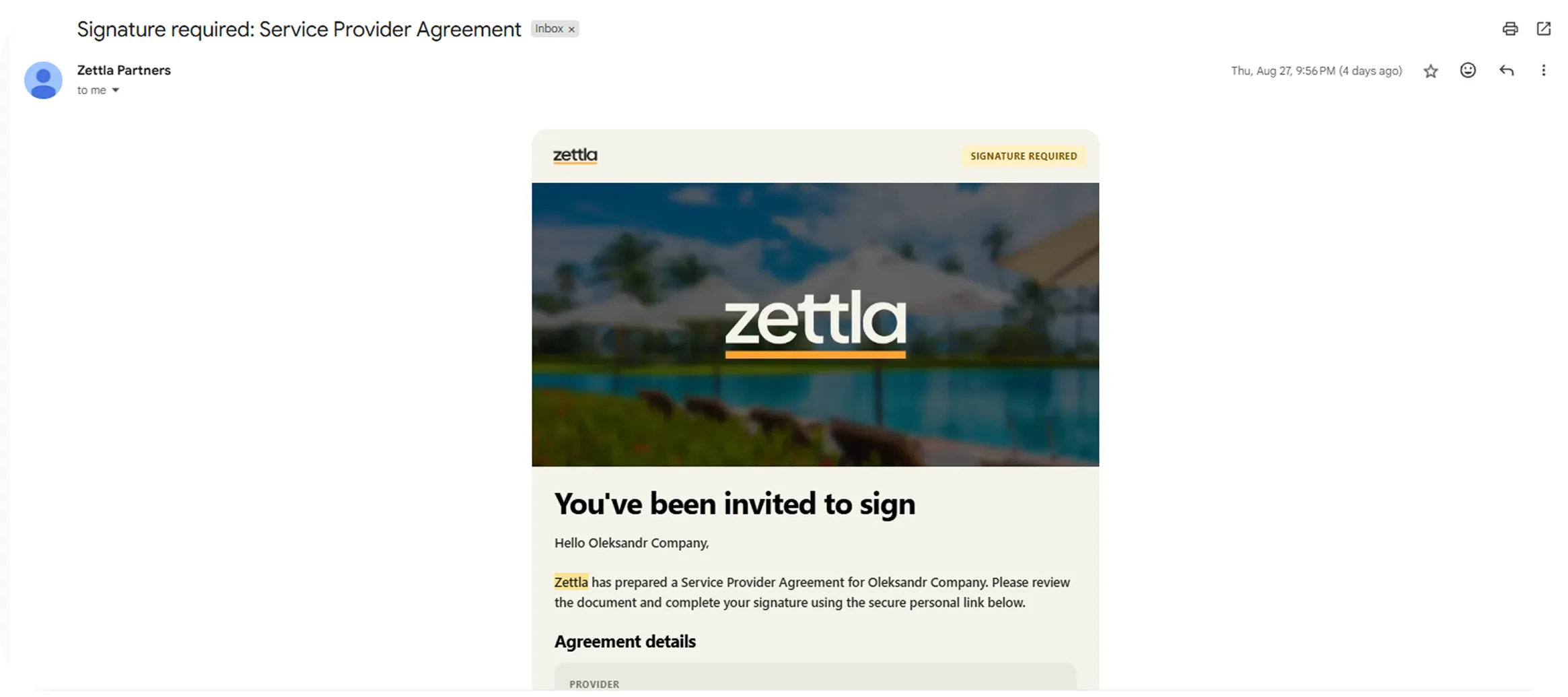
Step 2. Receive the agreement email and sign it
After your application has been reviewed and approved, you'll receive an email with your provider agreement.
Open the email, review the document, and sign it directly in your browser. There is nothing you need to download or install.
After you sign, Zettla will countersign the agreement. You'll then receive confirmation that the agreement has been signed by both parties.
⚠️ Can't find the agreement email?
It may have landed in your Spam or Promotions folder. If you're expecting it and don't see it in your inbox, check those folders first.
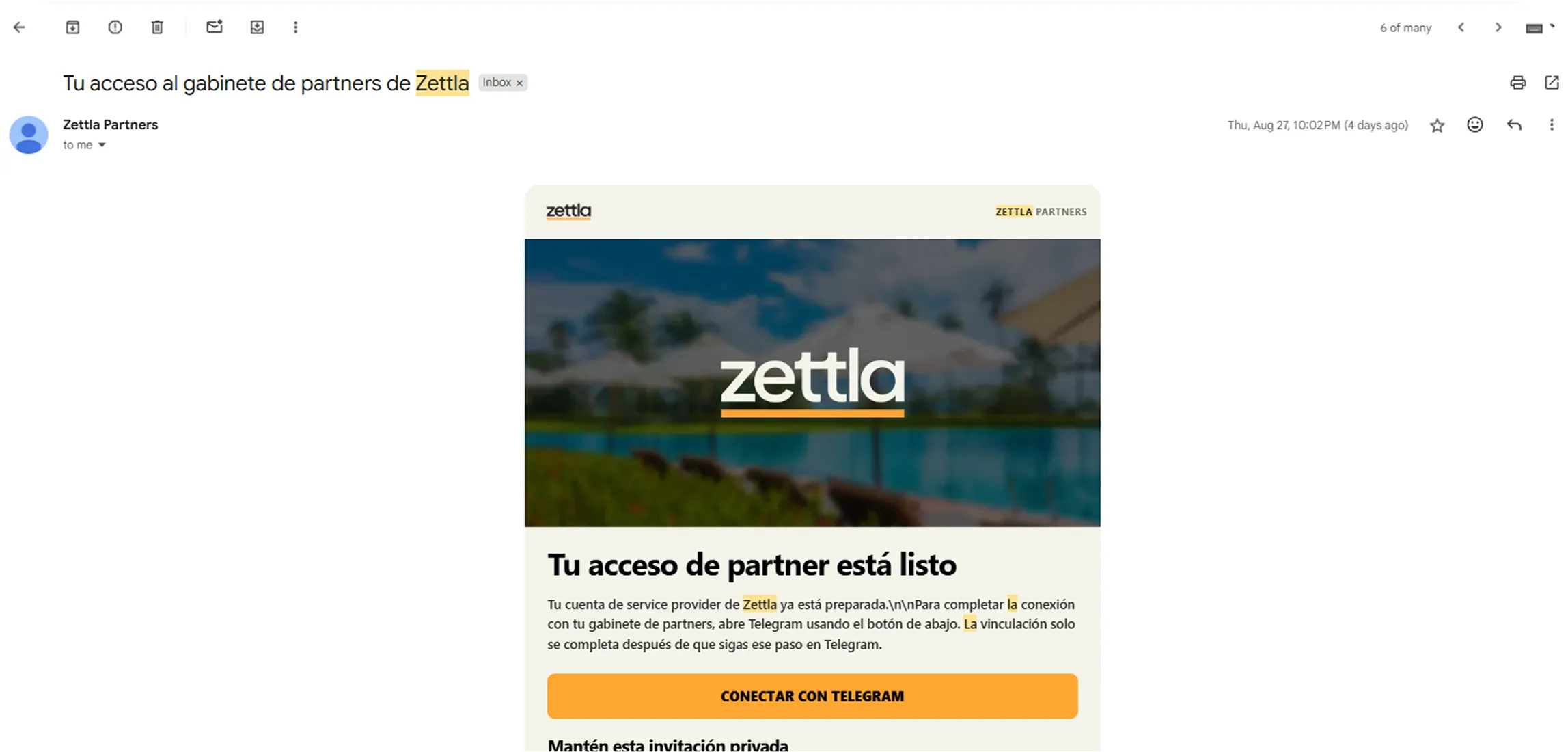
Step 3. Receive the "Cabinet is ready" email
Once the agreement has been signed by both sides, you'll receive an email titled "Your cabinet is ready."
Inside the email, you'll see an "Open in Telegram" button.
This is your personal invitation to activate your provider account.
The link is single-use and time-limited, so open it when you're ready to complete your first login.

Step 4. First login: through the bot only
For your first login, you must use the Telegram bot. Do not start by opening the cabinet website directly.
This first step connects your Telegram account to your Zettla provider profile and allows the bot to send you new jobs.
Tap "Open in Telegram" in the invitation email.
Telegram will open the @Zettla_Partners_Bot.
Tap Start at the bottom of the screen.
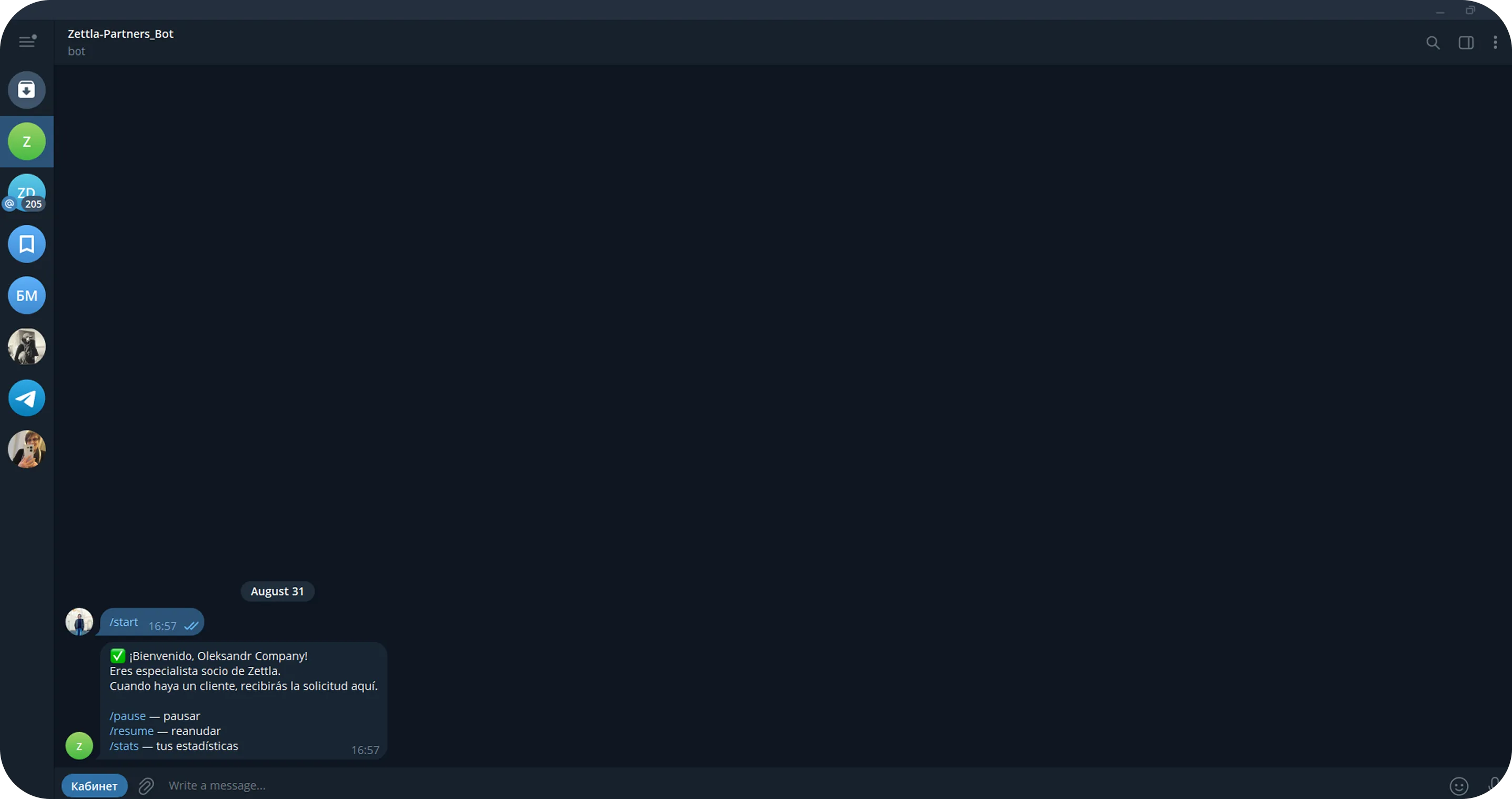
The bot will recognize your invitation, activate your account, and send you a welcome message.
You'll then see a "Cabinet" button.

You can also open the bot directly at:
t.me/Zettla_Partners_Bot
🔑 Why tapping Start is important
Telegram does not allow a bot to message a user before that user has started the bot.
Until you tap Start, Zettla cannot deliver jobs to your Telegram account. There may be no visible error, the messages simply cannot reach you.
It is only one button, but this step is required before you can start receiving jobs.

Step 5. Open your cabinet inside Telegram
Tap the "Cabinet" button in the bot's welcome message.
Your personal Zettla cabinet will open directly inside Telegram.
The cabinet contains three main sections:
Jobs
Incoming requests and bookings from the Zettla website.
Balance
Your current account balance and related information. Your first 6 months are free.
Profile
Your provider ID, services, contact information, and account details.
At this point, you're fully operational.
New jobs can arrive through Telegram, and your cabinet is always accessible from the bot.
The next step is optional and simply makes accessing the cabinet faster.
Step 6. Add the Zettla icon to your phone
Instead of opening Telegram and finding the bot every time, you can add your cabinet directly to your phone's home screen.
It will behave much like a regular app and open full-screen when tapped.
First, open @Zettla_Partners_Bot and send:
The bot will send you a personal cabinet link.
This link is valid for 15 minutes.
Open the link in your browser, then follow the instructions for your phone below.
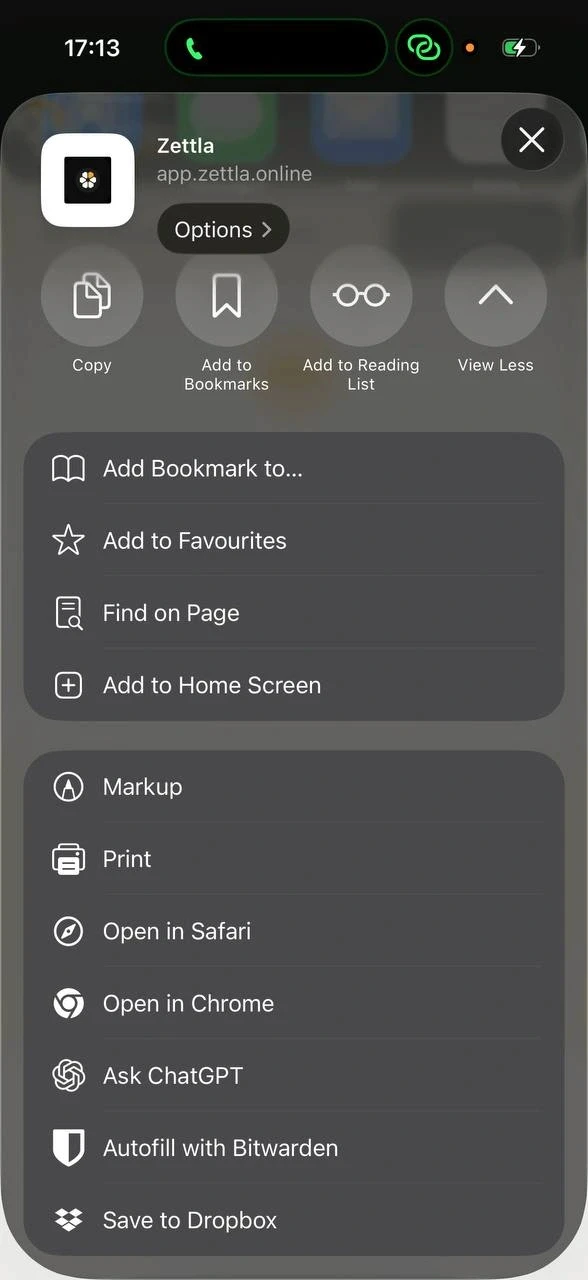
iPhone (iOS)
The link generated by /app must be opened in Safari.
On iPhone, Safari is required to add the Zettla cabinet to your home screen.
If the link opens in Chrome, Telegram's browser, or another browser, copy the link and paste it into Safari's address bar.
Then:
Open the cabinet in Safari.
Tap the Share button at the bottom of the screen, the square with an upward arrow.
Scroll down in the Share menu.
Tap "Add to Home Screen."
Tap "Add."
Done. The Zettla icon will now appear on your iPhone's home screen.
📱 Important for iPhone
iOS does not always show a separate "Install app" button. Adding the cabinet through Share → Add to Home Screen is the normal installation process.
If you're using Safari and haven't installed the app yet, the cabinet may also show a reminder at the bottom of the screen.
Android
Open the personal /app link in Chrome.
In most cases, Chrome will automatically show an "Install app" prompt.
Tap it and confirm the installation.
If the prompt doesn't appear:
Tap the ⋮ menu in the top-right corner of Chrome.
Select "Install app" or "Add to Home screen."
Confirm.
Done. The Zettla icon will now appear on your phone's home screen.
After installation, tapping the icon opens your cabinet full-screen.
Your login is remembered, so you normally won't need to sign in again.
If the cabinet asks you to log in again after a long period of time, simply return to @Zettla_Partners_Bot, send:
Then open the new personal link.
If something goes wrong
Problem | What to do |
|---|---|
No agreement or invitation email | Check your Spam and Promotions folders. If it's still missing, contact your Zettla manager. |
The invitation link doesn't work or the bot doesn't recognize you | The invitation is single-use and time-limited. Contact your manager and we'll send you a new one. |
Jobs aren't arriving | Make sure you've tapped Start in @Zettla_Partners_Bot. Telegram won't allow the bot to send you jobs until you've started it. |
No "Add to Home Screen" option on iPhone | Make sure the cabinet is open in Safari, not Chrome or another browser. |
The icon is installed, but the cabinet asks you to log in | Open the Telegram bot, send |

OTHER ARTICLES